The Explorer is the interactive view of a Form, and this page follows the questions it answers: where is this resource, why is it placed or connected there, what does this plan change, and what does the evidence leave open. To try each one without installing anything, open the Playground; the figures below come from its commerce platform sample.
Locally, start from a plan JSON, a state JSON, or a saved Form, and pair the
saved plan when direct traversal evidence matters. By default, rootform run
starts a loopback server and opens a browser:
rootform run plan.json --plan-file plan.tfplan --no-browser --port 0Copy the Explorer address from the terminal into your browser, and press
Ctrl+C in the terminal when finished. Here --no-browser leaves the
launch to you and --port 0 asks the operating system for an available port.
A saved Form opens the same way with rootform run analysis.json.
Search (⌘K on macOS, Ctrl+K elsewhere) covers the whole
architecture, including objects outside the current scene. Search by name or
type, then select a result to open its containing context and reveal it. Each
result shows its path, such as prod / prod for a subnet in the virtual
network prod of the resource group prod. The footer shows the displayed
range and total matches, so a short visible list is not the full result set.
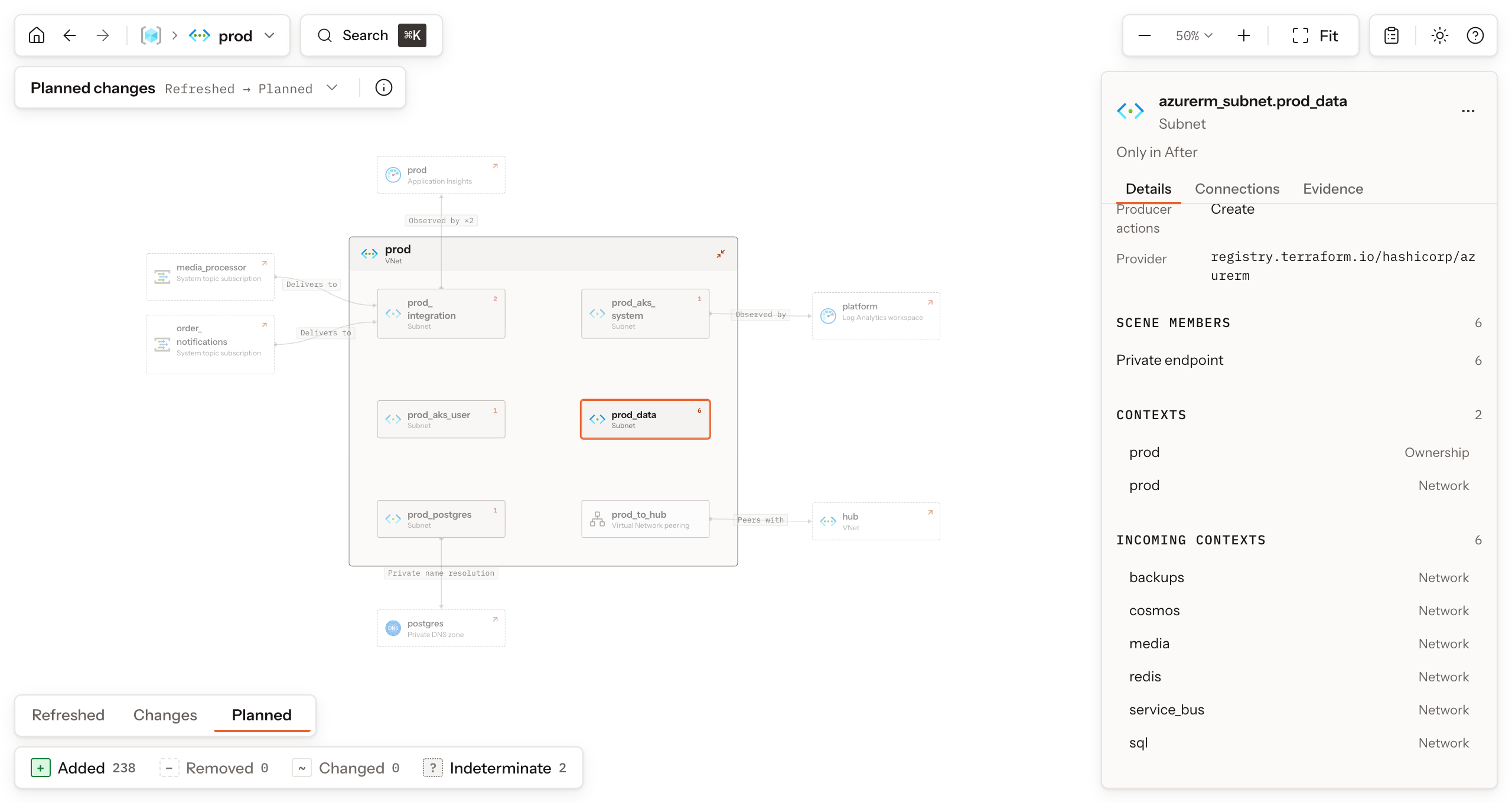
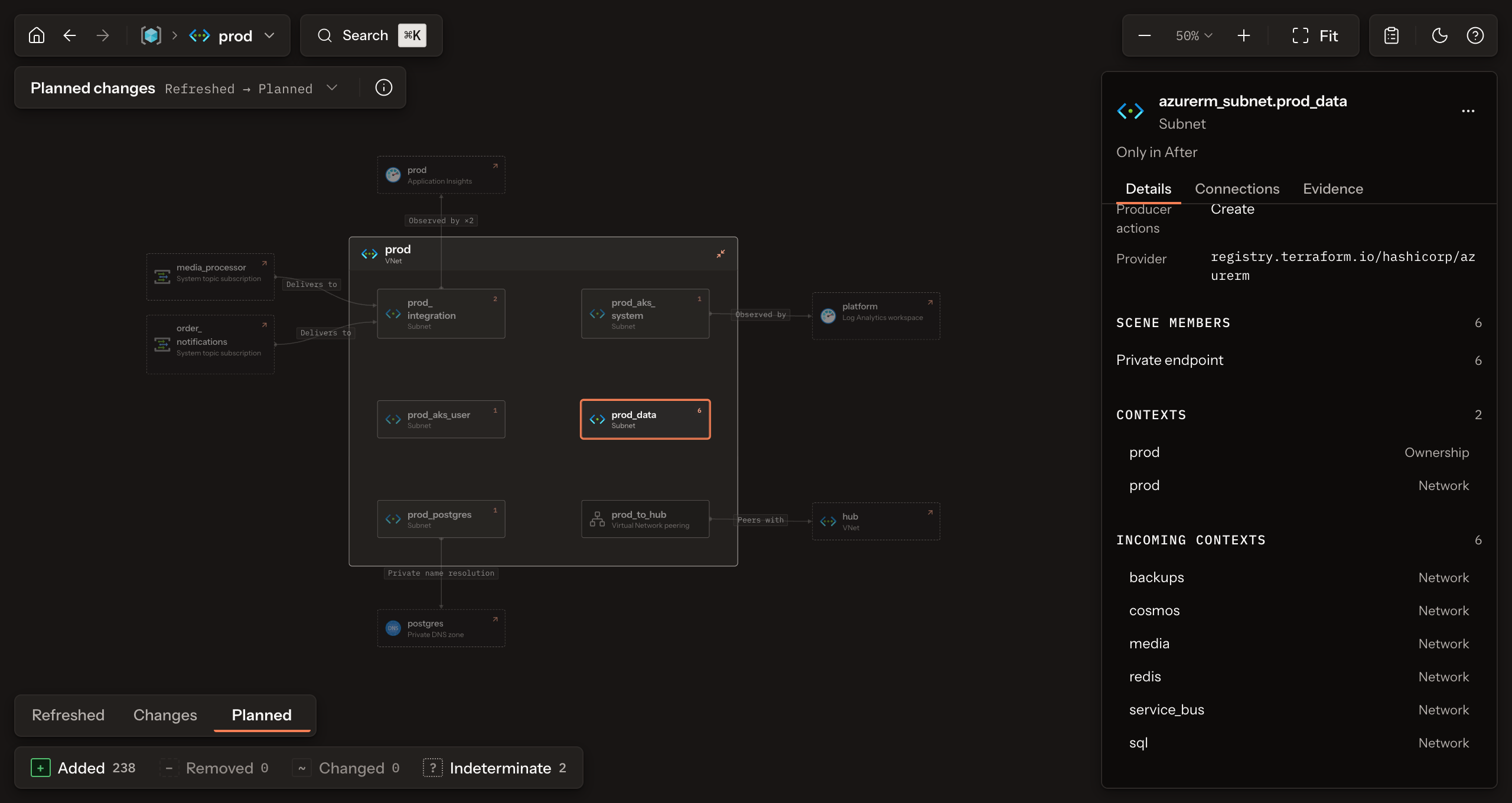
The canvas shows the current context and its direct contents. Open a card with nested objects to make it the current context. The navigation controls at the top left show your path: Architecture root returns to the top, Back and Forward revisit locations, and the current-context menu jumps to any ancestor. Use the parent name to move up one level. When a resource has more than one established placement, its path menu lists Also placed in.
The Explorer draws architectural contexts and relations emitted by Dialect Rules. Terraform dependencies remain evidence; they do not become connection arrows on their own.
Select a card to open the Inspector. Details shows the instance address, its interpretation, status, producer actions, and provider. Contexts lists its proven placements; Incoming contexts lists objects placed here, and Scene members counts its nested scene contents. Connections lists architectural relations. Evidence shows facts, closures, dependencies, and diagnostics. Center selection brings the selected object back into view after navigation.
Form details, at the top right, opens in the Inspector and lists changes, all instances, and evidence beyond the current scene. Its instance count includes objects without an applied architecture interpretation, which may have no canvas card; the toolbar says how many instances the canvas does not draw.
A placement appears as containment on the canvas and a context fact under
Contexts. In Evidence, inspect the fact and its Resolution for the
emitting Rule and the source evidence, then read the closure outcome:
resolved establishes the fact, absent records a supported absence, and
indeterminate keeps a reason such as unknown until apply or sensitive
evidence. A closure may stay indeterminate even when an instance is
represented on the canvas.
In the commerce sample, the fact
azurerm_subnet.prod_data → azurerm_virtual_network.prod resolves through
Rule azure.rule.subnet and the attribute source.virtual_network_name; the
quickstart reads it step by step. When a
value is unknown until apply, the saved-plan traversal settles the fact.
Pair the saved plan explains the
pairing requirement, and
Trace a placement
shows the same closure with and without it.
Select a route or a relation in Connections. The Inspector identifies its endpoints, predicate, and evidence. If several relations share visible endpoints or an endpoint is inside a closed context, the canvas may show an aggregate route. Select the route to inspect its members, then use Reveal endpoints or open the containing context to see the actual resources. A route's visual shape is not a claim of live network reachability.
A relation that leaves the current context can show an outside reference card with its home context. It points to the same resource. Use Go to to open the home context.
The selector under the navigation controls names the current view and the two stages it compares. A plan opens on Planned changes; the other two views appear when the plan holds their stages.
The info button beside the selector opens About this view: what the view means, its result counted in instances, events, facts, and indeterminate closures, and Notes on how a stage came to be, such as Recorded reconstructed by reversing drift entries.
When a limit changes how the canvas reads, the button shows a warning icon and the panel adds Limits of this view. A limit is a comparison that is not comparable, instances the plan did not evaluate, unverified instance counts, or a plan that reports itself incomplete.
A dot on the button means the view has lists to read. Each one opens Form details in the Inspector at that list:
- Drift report: each drift entry, by consequence.
- Cancelled drift: the drift that Net change restores.
- Instance events: moved, replaced, and recreated instances.
A state Form shows its Recorded architecture without comparison controls. A comparison Form has a single view, Differences between its two selected stages, and About this view also names its two inputs; Compare two Forms opens one.
The reading block at the bottom left chooses the first stage, the difference, or the second stage: Refreshed, Changes, and Planned for Planned changes, or Before, Differences, and After for two inputs. A stage side draws that architecture alone. Under it, four filters count the comparison entries of the current view as Added, Removed, Changed, and Indeterminate; each tooltip gives the breakdown in units. Keep one to narrow the canvas to those entries and Reset to release them; on a stage side they only highlight.
The camera at the top right zooms, fits the architecture, and centres the selection; its zoom readout opens those actions with their keys. The Form actions next to it open Form details and the list of instances the canvas does not draw. On a narrow screen the camera keeps its Fit button and stands beside the selector; pinch, wheel, or the keys still zoom.
Do not read “No drift reported in this plan” as proof that no infrastructure changed. Terraform or OpenTofu may have skipped refresh or limited scope. See comparisons and drift, and Review planned changes for the three questions a plan answers.
The Indeterminate filter counts the closures the current view could not settle; keep it to see the instances they belong to. Their reasons are in each instance's Evidence tab under Closures, and About this view lists any limit that changes how the canvas reads, such as instances the plan did not evaluate. An indeterminate closure is neither a change nor an unchanged fact; Limitations lists what stays outside the evidence altogether.
Some association resources contribute implementation detail without a permanent card in every scene. Find one through search or from the object it contributes to, then reveal it for inspection. Its per-instance entry and provenance remain in the Form even when the scene leaves it collapsed.
Save a reusable Form or a standalone browser view from the same input:
rootform run plan.json --plan-file plan.tfplan --no-serve -o analysis.json -o architecture.htmlThe HTML file embeds the Explorer and the Form, makes no network requests,
and needs no server. The JSON file can reopen in run or feed explain.
Neither contains sensitive values, but both reveal infrastructure names and
topology to anyone who receives them. Review
security and data handling and
output formats before sharing.
Shortcuts apply when focus is outside a text field. Alt is Option on
macOS.
Ask the same questions from the terminal with Explain an architecture, read the three views of one plan in Review planned changes, or choose an input for another question.